
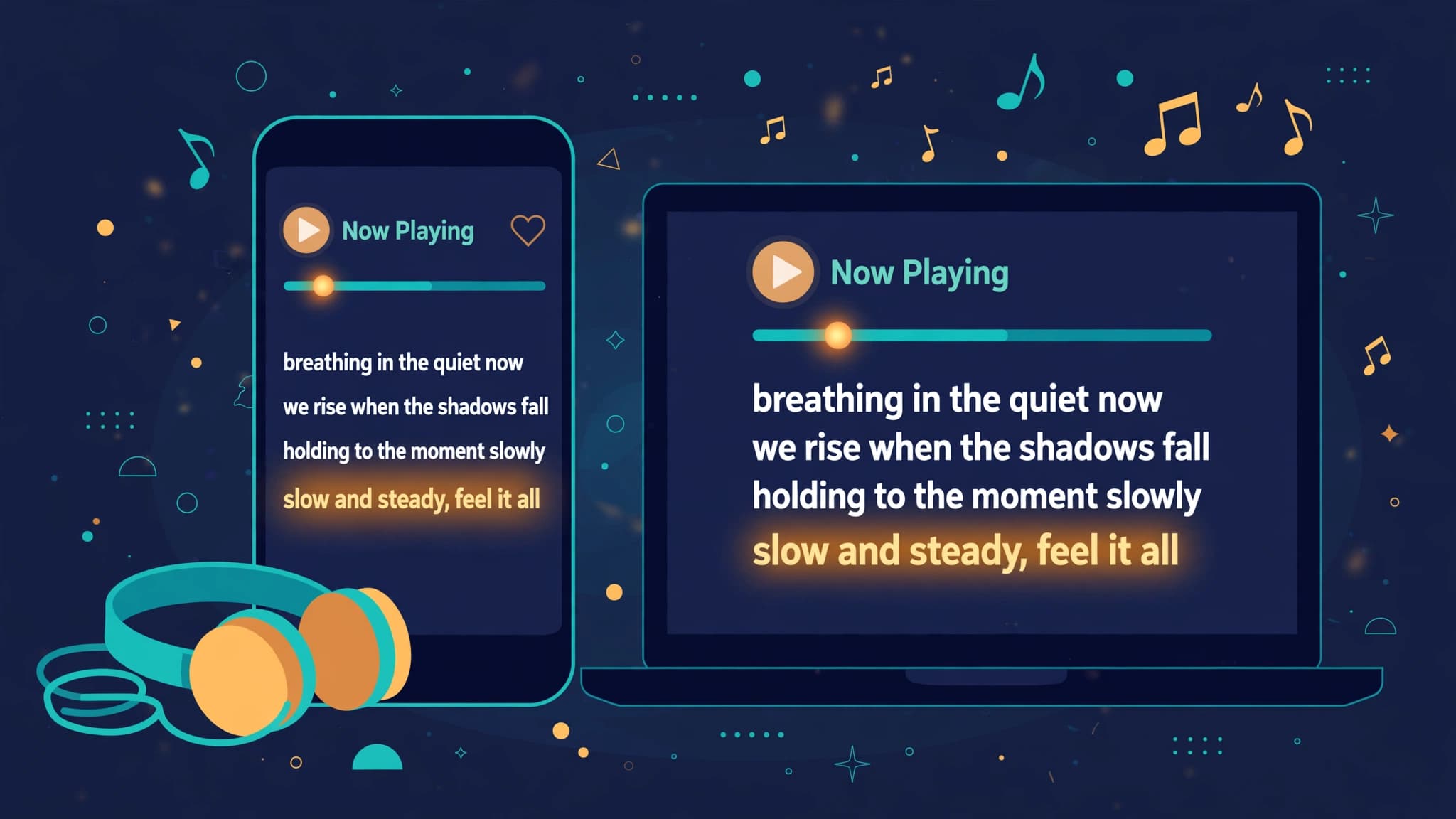
An LRC file only works if your app knows what to do with it. Music players like Poweramp read .lrc files directly, while VLC and video editors are built around subtitles and need an SRT file instead. This guide covers both routes, plus how to add rolling lyrics to a video in CapCut and Premiere Pro.
You have a song and a perfectly synced LRC file — but when you press play, no lyrics appear. This is the most common frustration with LRC files, and it is almost never the file's fault. Every player and editor handles timed lyrics differently:
- Music players (Poweramp, MusicBee, AIMP, foobar2000) read
.lrcfiles natively and scroll them line by line. - VLC and video editors (CapCut, Premiere Pro) are built around subtitle formats, so they ignore
.lrcand need.srtinstead. - Streaming apps (Spotify, Apple Music) do not accept external lyrics files at all — they run their own synced-lyrics systems.
Once you know which family your app belongs to, setup takes about two minutes.
First, Get a Synced Lyrics File — and Name It Right
If you do not have an LRC file yet, generate one from your audio with the AI LRC Generator: upload the song and the AI transcribes the vocals and aligns every line (and every word) to the timeline. Already have the lyrics as plain text? Use TXT to LRC or time them manually in the LRC Maker.
Whatever tool you use, three rules decide whether players find your file:
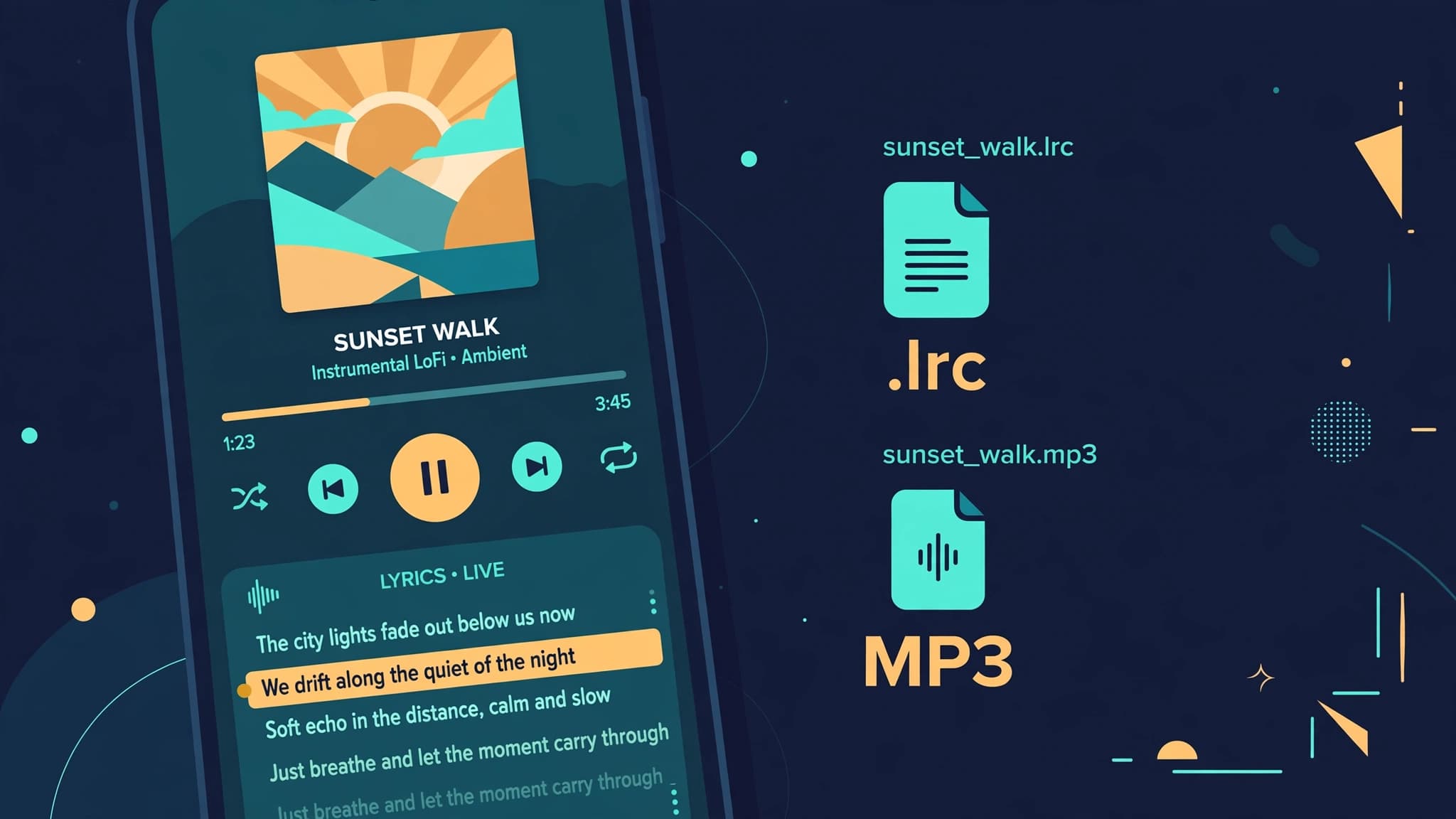
- Same file name. The lyrics file must match the audio file exactly:
sunset_walk.mp3pairs withsunset_walk.lrc. - Same folder. Keep both files in the same directory.
- UTF-8 encoding. Save the file as UTF-8 so non-English lyrics do not turn into garbled characters.
Quick Answer: Which Apps Read .lrc Files?
| App | Reads .lrc directly? | What to do |
|---|---|---|
| Poweramp (Android) | Yes | Same-name .lrc in the same folder, enable LRC scanning |
| MusicBee, AIMP (Windows) | Yes | Same-name .lrc in the same folder |
| foobar2000 | Yes | Same-name .lrc; add the ESLyric plugin for word-by-word highlighting |
| VLC | No | Convert LRC to SRT, then load it as a subtitle |
| CapCut / Jianying | No | Convert LRC to SRT, then import it as captions |
| Premiere Pro | No | Convert LRC to SRT, then import it as a caption track |
| Spotify / Apple Music | No | External lyrics files are not supported |
Poweramp (Android): Show Scrolling Lyrics
Poweramp is the most popular Android player with proper LRC support, including word-by-word highlighting for Enhanced LRC files. Setup:
- Copy your
.lrcfile into the same folder as the song, with the exact same file name (only the extension differs). - In Poweramp, open Settings → Look and Feel → Lyrics.
- Turn on Scan LRC Files. If your lyrics contain Chinese, Japanese, or accented characters, also enable Always use UTF-8.
- Go back to the library and run a Rescan so Poweramp picks up the new file.
- Play the song and open the lyrics view (swipe up on the player screen or tap the lyrics icon). The current line highlights and scrolls in sync.
Lyrics not showing? In almost every case the file name does not match the audio file name character-for-character, or the library has not been rescanned since you added the file.
VLC: It Ignores .lrc — Convert to SRT First
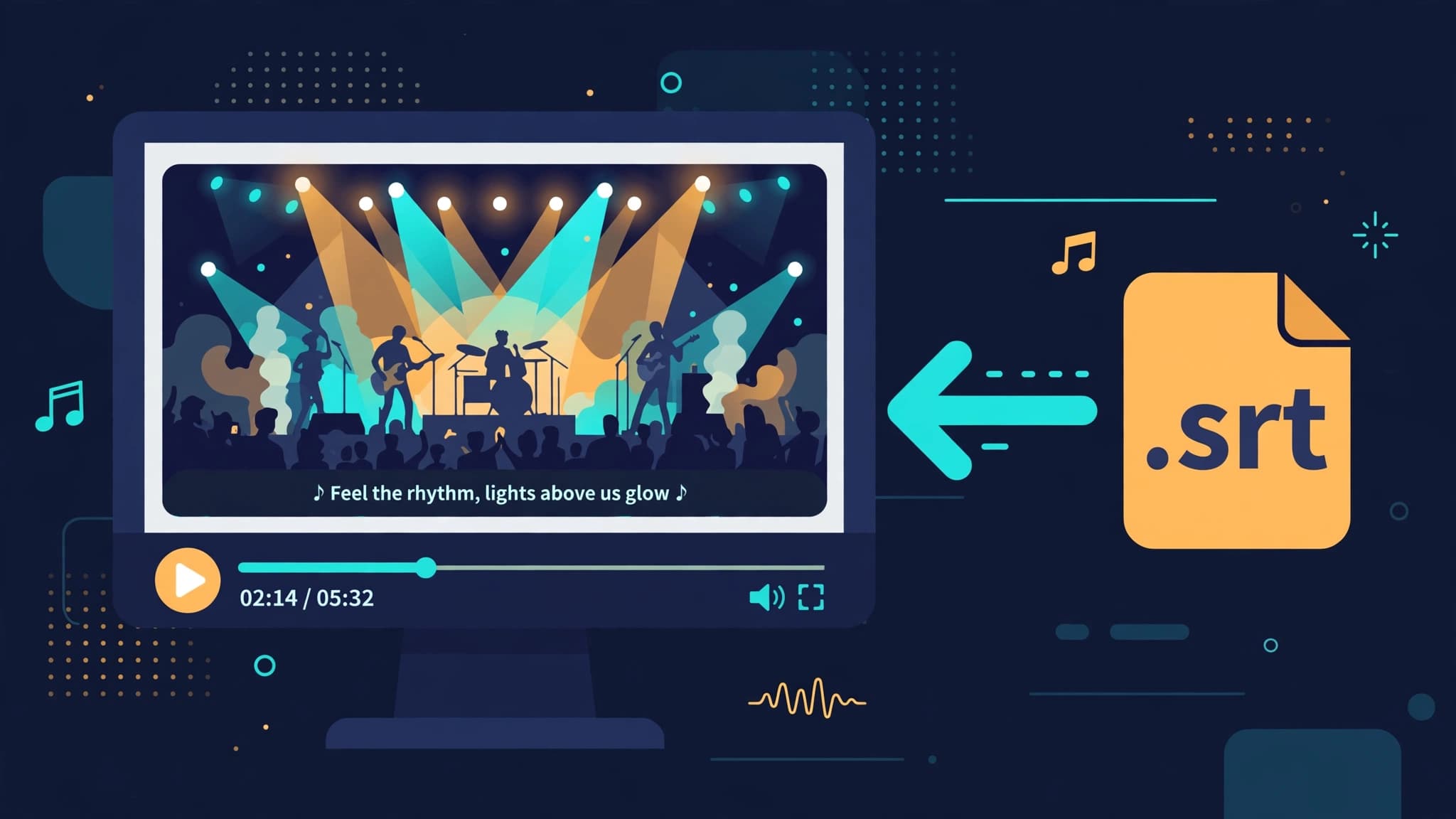
VLC is a video player built around a subtitle engine. It reads SRT, WebVTT and ASS subtitles, but it does not read LRC files at all: place an .lrc next to your media and VLC simply ignores it. The fix takes under a minute:
- Convert your file with the LRC to SRT Converter. Timestamps carry over exactly, because both formats store one timed line at a time.
- Open your song or video in VLC.
- Go to Subtitle → Add Subtitle File… and select the
.srtfile. The lyrics now appear on screen in sync, like subtitles. - If the lyrics run slightly early or late, use the G and H hotkeys to shift the subtitle delay in 50 ms steps until they lock in.
Tip: if an .srt file has the same name as a video file and sits in the same folder, VLC usually loads it automatically.
Desktop Players That Read .lrc Natively
- MusicBee: shows lyrics in the Now Playing lyrics panel. A same-named
.lrcin the track's folder is detected automatically; MusicBee can also read lyrics embedded in the audio file's tags. - foobar2000: displays synced lyrics with the built-in text reader setups and third-party panels; install the ESLyric plugin if you want Enhanced LRC word-by-word highlighting.
- AIMP: reads same-named
.lrcfiles out of the box and shows them in its lyrics view.
For all of them the rule is the same as Poweramp: same name, same folder, UTF-8.
CapCut and Jianying: Add Rolling Lyrics to a Video
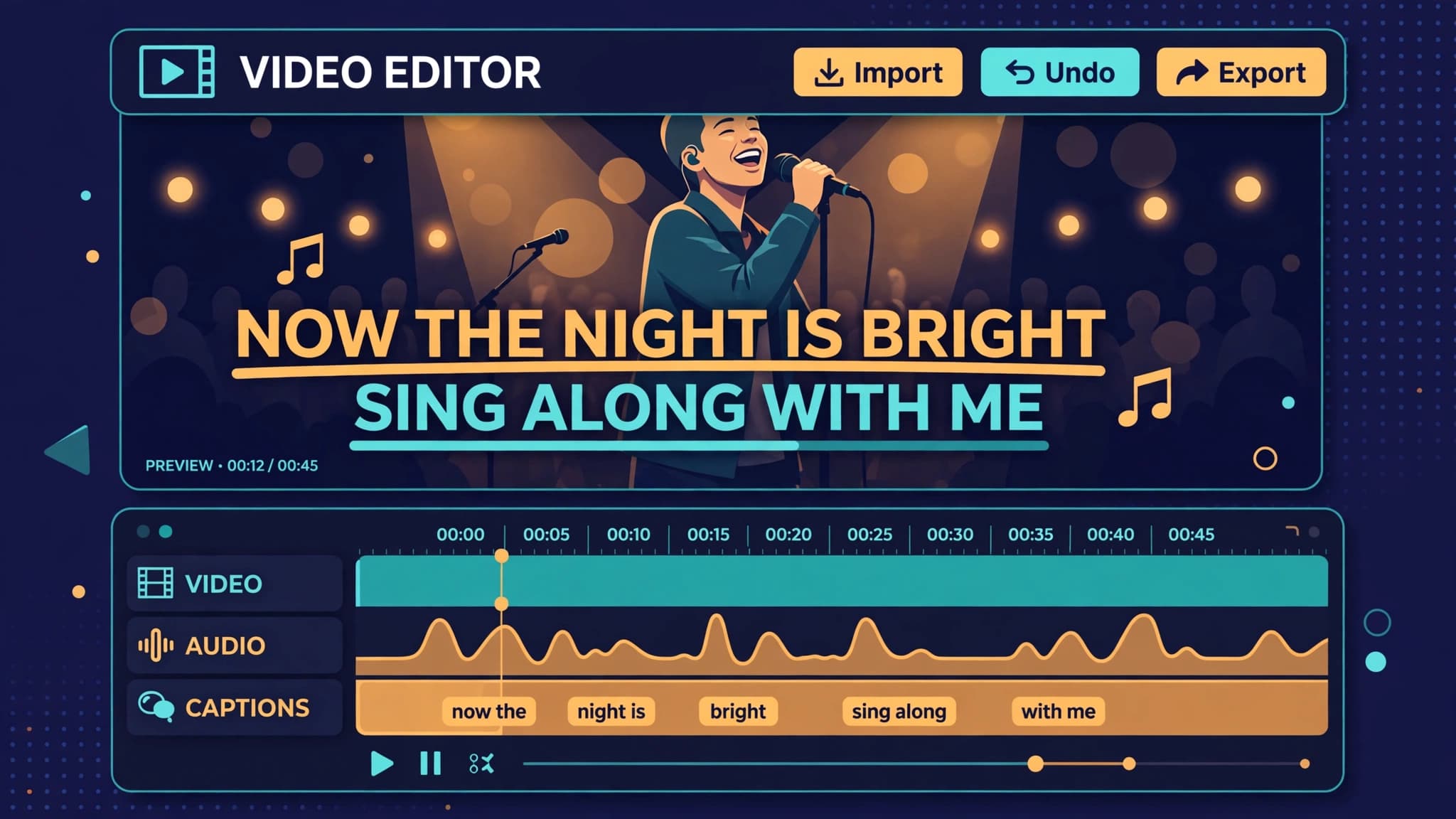
CapCut (and its Chinese version, Jianying / 剪映) is where most lyric videos are made today. Both are subtitle-based, so the workflow starts with the same conversion:
- Convert your LRC file to SRT with the LRC to SRT Converter — or export SRT directly from the AI LRC Generator if you are generating from audio.
- Create a new project and import your video and audio.
- Open the Text / Captions panel and choose Import subtitle file, then select the
.srt. Every lyric line lands on the timeline at the right moment. - Style the text: a bold font, a dark stroke or background box, and center-bottom placement keeps lyrics readable on any footage.
- For the karaoke effect, apply a text highlight or progress animation to the caption style, so the active line (or word) stands out as it is sung.
- Preview the full song once, nudge any line that drifts, and export.
Premiere Pro: Lyrics as a Caption Track
Premiere Pro treats lyrics as captions, which gives you full typographic control:
- Convert your LRC file to SRT first (Premiere does not import
.lrc). - Import the
.srtinto your project with File → Import, then drag it onto the timeline — Premiere creates a caption track automatically. Alternatively, use the Text panel → Captions → Import in the Captions workspace. - Style the captions in the Properties / Essential Graphics panel: font, size, stroke and background.
- If the lyrics must be permanently visible (for example, for platforms without caption support), choose Burn Captions Into Video in the export settings under Captions. Otherwise, export them as a sidecar
.srt.
Troubleshooting
Lyrics do not appear at all
Check the three rules first: identical file name, same folder, and a library rescan after adding the file. In VLC and editors, remember that an .lrc file will never work — convert to SRT.
Lyrics are consistently early or late
Your file's timing is offset from your audio. Add an [offset:+500] or [offset:-500] tag (milliseconds) at the top of the LRC file, or shift all timestamps in the LRC Editor.
Lyrics drift further and further The LRC was probably made for a different version of the song (radio edit vs. album version, a remaster, a live recording). Regenerate the file from your exact audio file — timings only match the recording they were made from.
Characters show as boxes or mojibake The file was saved in a legacy encoding. Re-save it as UTF-8, and in Poweramp enable Always use UTF-8.
FAQ
Does VLC support LRC files? No. VLC's subtitle engine reads SRT, WebVTT and ASS, but not LRC. Convert your LRC to SRT and load it via Subtitle → Add Subtitle File….
Can players highlight lyrics word by word? Yes — that is what Enhanced LRC is for: each word carries its own timestamp inside the line. Poweramp and foobar2000 (with ESLyric) can highlight word by word; players that do not understand the word tags simply fall back to line-by-line display.
Can I upload an LRC file to Spotify or Apple Music? No. Both services run closed synced-lyrics systems (powered by their licensing partners) and do not read external files. External LRC files are for local players, karaoke software and video production.
LRC or SRT — which should I keep? Keep the LRC as your master file if your main use is music players; it is the native lyrics format. Export an SRT copy whenever a video tool needs the lyrics, since conversion between the two is lossless for line-level timing.
The Short Version
Players that are made for music (Poweramp, MusicBee, AIMP, foobar2000) want a same-named .lrc beside your audio. Everything built for video (VLC, CapCut, Jianying, Premiere Pro) wants subtitles, so convert the same file to SRT and import it as captions. Get the file right once — with AI LRC Generator and the LRC to SRT Converter — and your lyrics will follow the song everywhere.